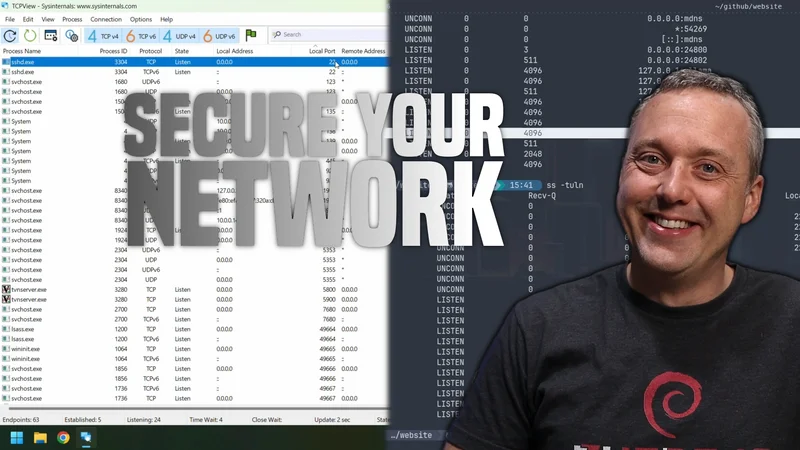
This article explains how to check to see if your network is secure, and if you have any open ports or services that could be vulnerable to attack. It covers both Windows and Linux operating systems, and provides step-by-step instructions for using various tools to scan your network for vulnerabilities.
Basic Network Scan
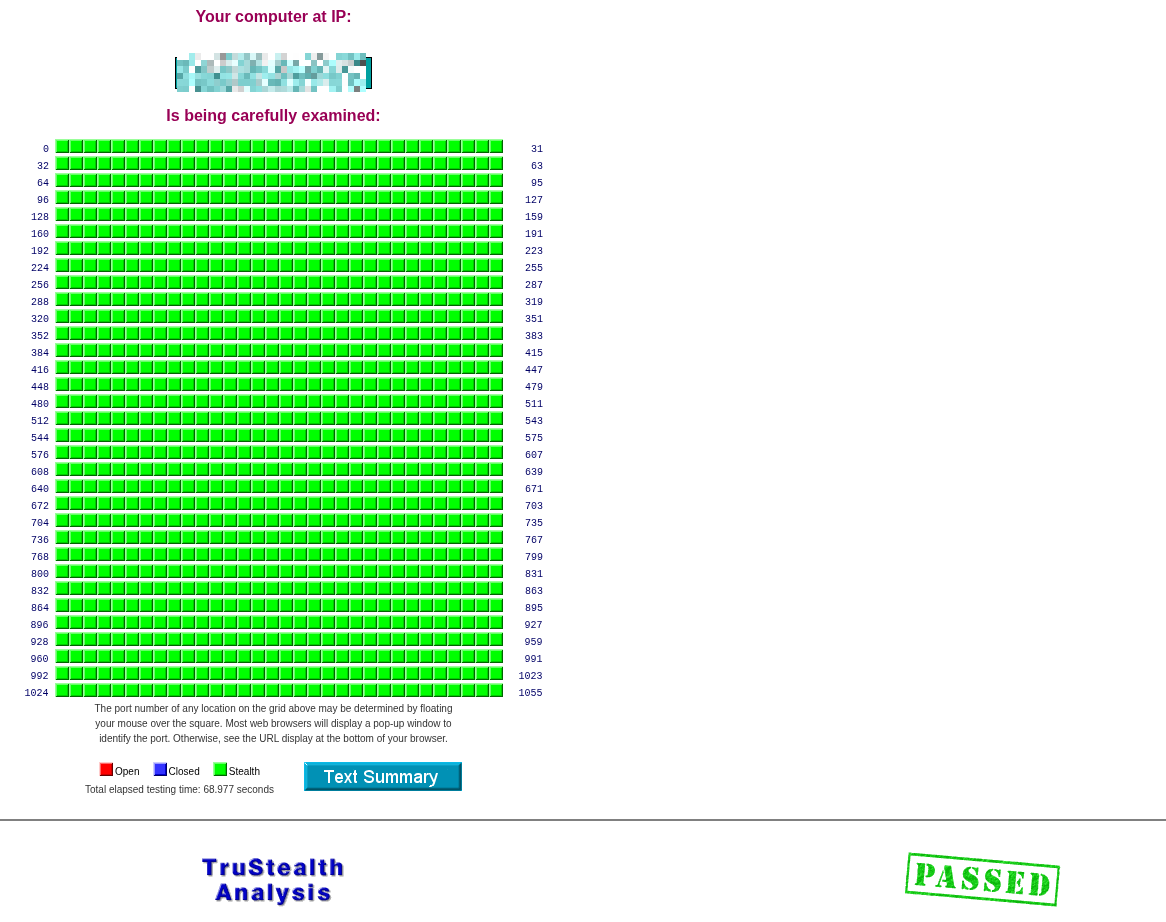
To check your network you can use grc.com to perform a basic network scan. It will show if you have any open ports or services that could be exposed to the internet. You can also use tools like Nmap or Wireshark to perform more in-depth scans and analysis of your network traffic.
GRC’s ShieldsUP! service is a popular tool for checking the security of your network. It tests for open ports and vulnerabilities that could be exploited by attackers. You can access it at https://www.grc.com/shieldsup.
Note: You should see something like this below
Windows Scan
On Windows, you can use the built-in Command Prompt or PowerShell to check for open ports. The netstat command is commonly used for this purpose. Open Command Prompt and run the following command:
netstat -anThis will display a list of all active connections and listening ports on your system. Look for any entries that show “LISTENING” to identify open ports.
Linux Scan
On Linux, you can use the netstat command as well, or you can use ss which is a more modern tool. Open a terminal and run the following command:
sudo netstat -tulnNote: netstat package is in the net-tools package, which may not be installed by default on some Linux distributions. You can install it using your package manager (e.g., sudo apt install net-tools on Debian-based systems).
Newer Systems use ss instead of netstat. You can run the following command to check for open ports:
sudo ss -tulnThis will show you all the TCP and UDP ports that are currently listening on your system. Look for any entries that indicate open ports.
Check for Outside Addresses
From your netstat or ss output, you can identify any external IP addresses that are connected to your system. This can help you detect unauthorized access or potential security threats.
Find what is Running on the Open Ports
Windows:
# PowerShell — replace 8080 with your port
netstat -ano | findstr :8080

# Then look up the PID
tasklist | findstr <PID>

# PowerShell one-liner (shows process name directly)
Get-Process -Id (Get-NetTCPConnection -LocalPort 8080).OwningProcess
Linux:
# ss (modern, preferred)
ss -tulnp | grep :8080

# netstat (older systems)
netstat -tulnp | grep :8080

# lsof — shows process name + PID
lsof -i :8080

# fuser — just the PID
fuser 8080/tcp
Securing a Network
Routers
If you are using a router your ISP provided, I’d recommend getting something like a Ubiquiti unifi gateway or a pfSense box. These devices provide better security features and allow you to have more control over your network. You can set up firewalls, VPNs, and other security measures to protect your network from potential threats.
- Ubiquiti = easy to setup and manage but expensive
- pfSense = more complex to setup and manage but much cheaper with build your own hardware setups. Or buy a pre-built appliance from Netgate.
Other 3rd party routers like Asus, TP-Link, etc. can be decent but they often have security vulnerabilities and may not receive regular updates. They probably are better than the ISP provided router but I would recommend going with a more reputable brand if you want better security.
Resources for pfSense:
Firewall
DO NOT buy a firewall or internet suite… they are terrible.
Check your windows firewall with wf.msc and make sure it is enabled and properly configured. You can create rules to block incoming connections on specific ports or from specific IP addresses.
For linux I’d recommned using ufw (Uncomplicated Firewall) which is a user-friendly interface for managing iptables. You can enable it with the following commands:
sudo ufw enable
sudo ufw default deny incoming
sudo ufw default allow outgoing
or configure with a gui like gufw or firewall-config depending on your linux distribution.
3rd Party Firewall Software
| App | Platform | Description | Link |
|---|---|---|---|
| simplewall |  |
Lightweight WFP-based per-app firewall, no background service required | github.com/henrypp/simplewall |
| Windows Firewall Control (WFC) | |
GUI front-end for the built-in Windows Firewall by Malwarebytes, free tier available | binisoft.org/wfc |
| TinyWall | |
Lightweight wrapper around Windows Firewall, whitelist-based, very low resource usage | tinywall.pados.hu |
| OpenSnitch |  |
Application-level outbound firewall, prompts on first connection per app | github.com/evilsocket/opensnitch |
| ufw / gufw | |
Uncomplicated Firewall with optional GUI, default on many distros | launchpad.net/ufw |
| firewalld | |
Dynamic firewall manager used on Fedora/RHEL/Arch, supports zones | firewalld.org |
VPN
VPN is a bandaid and can fix some issues but it is not a replacement for proper network security. It can help protect your data from being intercepted by encrypting your internet traffic, but it does not protect you from vulnerabilities in your network or devices. If you have a VPN, make sure to use a reputable provider.
All “security” influencers pushing VPNs are just trying to make a quick buck. A VPN can be useful in certain situations, but it is not a silver bullet for network security. Focus on securing your network and devices first, and use a VPN as an additional layer of protection if needed.
Check Devices on Your Network
You need to login to your router and check the list of connected devices. This will show you all the devices that are currently connected to your network, including their IP addresses and MAC addresses. Look for any devices that you do not recognize or that should not be on your network. If you find any suspicious devices, you can block them from accessing your network through your router’s settings.
ABOVE IS ACTIVE PROTECTION AND YOU MUST KEEP DOING IT TO MAINTAIN SECURITY
Other than above, you can use software like Angry IP Scanner or Advanced IP Scanner to scan your network for connected devices. These tools will show you all the devices that are currently connected to your network, along with their IP addresses and other information. You can use this information to identify any unauthorized devices and take action to secure your network.
Links:
Closing Thoughts
Security is a journey, not a destination. You need to continuously monitor and maintain your network security to protect yourself from potential threats. Regularly check for open ports, update your software and firmware, and be vigilant about any suspicious activity on your network. By taking these steps, you can help ensure that your network remains secure and protected from potential attacks.






Comments
Comments load when this section comes into view.