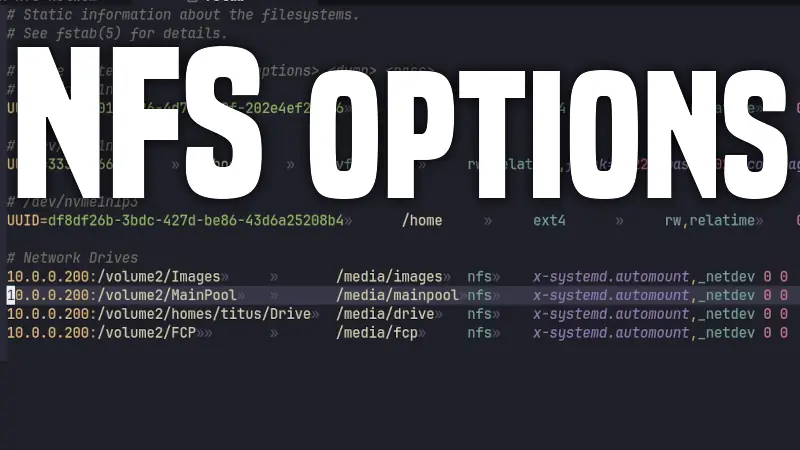
Most people mount NFS shares with a short line and move on. That works, but if you use network storage heavily (media libraries, VMs, homelab backups, project files), your mount options directly affect reliability, boot behavior, and performance.
This guide breaks down a practical high-reliability NFS option set and compares it to a basic mount setup, using Linux nfs-utils mount documentation (man 5 nfs) and systemd mount behavior (man 5 systemd.mount).
Quick Comparison: Basic vs Tuned
Basic fstab entry
nas:/data /mnt/data nfs defaults 0 0Tuned fstab entry (example)
nas:/data /mnt/data nfs nfsvers=4.1,bg,hard,nofail,noatime,rsize=1048576,wsize=1048576,timeo=600,retrans=5,x-systemd.automount,x-systemd.mount-timeout=90,_netdev 0 0What changes?
| Area | Basic (defaults) |
Tuned Example |
|---|---|---|
| NFS protocol version | Auto-negotiate | Pinned to 4.1 |
| Failure behavior | Default retry behavior | Explicit hard retries forever (safer for data integrity) |
| Boot experience | May block depending on environment | nofail + x-systemd.automount helps avoid boot hangs |
| Network timing | Generic defaults | Explicit timeo=600,retrans=5 |
| Throughput tuning | Negotiated defaults | Forces rsize/wsize up to 1 MiB cap |
| Access-time writes | relatime typically |
noatime to reduce metadata writes |
| Network ordering | Auto-detected for NFS | Explicit _netdev dependency |
Option-by-Option Breakdown
Reference base: man 5 nfs and man 5 systemd.mount.
nfsvers=4.1
- What it does: Pins the client to NFSv4.1.
- Official behavior: Without
nfsvers(orvers), Linux clients typically try newer NFS versions first and negotiate down. - Why use it: Predictability. If server and clients are known-good on 4.1, pinning avoids surprises after updates.
- Tradeoff: You lose automatic use of newer protocol features (for example, if 4.2 is supported and useful).
bg
- What it does: If mount fails/timeouts, mount helper retries in the background.
- Official behavior (
nfs(5)): Parent returns success while child keeps retrying. - systemd detail (
systemd.mount(5)):systemd-fstab-generatortranslatesbgsemantics and effectively applies behavior similar to long retries plusfg,nofailhandling under systemd job control. - Why use it: Better boot resilience when NAS/network is slow.
- Tradeoff: Failure may be less obvious immediately because retries continue in background.
hard
- What it does: NFS operations retry indefinitely after timeout.
- Official behavior:
hardis default and strongly preferred for data integrity;softcan return I/O errors and may risk silent corruption in some workflows. - Why use it: Correctness and durability over convenience.
- Tradeoff: Apps can hang waiting for server recovery.
nofail
- What it does: Mount is wanted, not required, during boot.
- Official behavior (
systemd.mount(5)): Boot continues even if mount is unavailable; unit is not ordered to block boot target completion. - Why use it: Prevent boot failures when NAS is down.
- Tradeoff: Service depending on that path may fail later unless you handle dependency checks.
noatime
- What it does: Disables access-time updates on reads.
- Why use it: Reduces metadata traffic and write amplification on busy shares.
- Tradeoff: Loses accurate
atimesemantics for tools/workflows that rely on access timestamps.
rsize=1048576
- What it does: Sets max read request payload to 1,048,576 bytes (1 MiB).
- Official behavior (
nfs(5)): Linux NFS client max read payload is 1 MiB; unsupported values are clamped/rounded according to rules. - Why use it: High-throughput sequential read workloads can benefit.
- Tradeoff: If network/server path can’t handle large I/O well, negotiated defaults may perform more consistently.
wsize=1048576
- What it does: Sets max write request payload to 1 MiB.
- Official behavior (
nfs(5)): Same cap/rounding behavior asrsize. - Why use it: Helps throughput for large sequential writes.
- Tradeoff: Same caution as
rsize; test with your server/network.
timeo=600
- What it does: Sets RPC timeout in deciseconds.
- Official behavior (
nfs(5)): For TCP,600means 60 seconds; TCP uses linear backoff and this value is already the standard default for TCP/RDMA. - Why use it: Mainly explicitness/documentation in your
fstab. - Tradeoff: Usually redundant for TCP NFS because it matches default behavior.
retrans=5
- What it does: Number of retries before the client escalates recovery behavior.
- Official behavior (
nfs(5)): TCP default retry count is lower by default; withhard, the client still continues broader recovery even after retry cycles. - Why use it: More tolerance for transient network stalls before warning/recovery transitions.
- Tradeoff: Longer delay before surfacing responsiveness issues.
x-systemd.automount
- What it does: Creates an automount unit so the share mounts on first access rather than during early boot.
- Official behavior (
systemd.mount(5)): Generates an automount unit fromfstab. - Why use it: Excellent for laptops/desktops/homelabs where network readiness timing is inconsistent.
- Tradeoff: First access to the path incurs mount latency.
x-systemd.mount-timeout=90
- What it does: Limits how long systemd waits for mount command completion.
- Official behavior (
systemd.mount(5)):fstab-only option that maps to mount job timeout behavior. - Why use it: Prevents very long hangs on dead endpoints.
- Tradeoff: Too short a timeout can fail mounts on slow links/startup races.
_netdev
- What it does: Explicitly marks mount as network-dependent.
- Official behavior (
systemd.mount(5)): Pulls in network-online ordering and treats mount as remote fs. - Why use it: Makes dependency intent explicit, especially in complex setups/VPN/overlay networks.
- Tradeoff: Usually redundant for plain NFS, but helpful for clarity and edge cases.
Final 0 0
- First
0: dump backup utility field (commonly unused, usually0). - Second
0:fsckorder. NFS is network fs and not checked via localfsck, so0is correct.
Is the Tuned Line Always Better?
No. A basic entry is fine for light use:
nas:/data /mnt/data nfs defaults,_netdev,nofail 0 0That is often enough for:
- Home media shares
- Occasional backups
- Non-critical personal files
Use the tuned profile when you care about predictable behavior under failure and want stricter control over boot/mount characteristics.
Practical Recommended Profiles
1) Balanced desktop/laptop
nas:/data /mnt/data nfs nfsvers=4.1,hard,nofail,_netdev,x-systemd.automount,x-systemd.mount-timeout=90 0 02) Throughput-focused LAN workstation
nas:/data /mnt/data nfs nfsvers=4.1,hard,noatime,rsize=1048576,wsize=1048576,timeo=600,retrans=5,_netdev,nofail 0 03) Minimal and safe
nas:/data /mnt/data nfs defaults,_netdev,nofail 0 0Verify What Is Actually Active
After mounting, validate effective options (especially negotiated rsize/wsize):
findmnt -t nfs,nfs4
nfsstat -m
cat /proc/mounts | grep ' /mnt/data '
The value in fstab is your request. The effective value can differ after client/server negotiation.
Official Documentation Sources
man 5 nfs(from nfs-utils package on Linux)man 8 mount.nfsman 5 systemd.mount(forx-systemd.*,_netdev, andnofailbehavior)- Upstream nfs-utils project: https://github.com/stefanha/nfs-utils
Final Thoughts
If you just want a stable setup, start with:
nas:/data /mnt/data nfs defaults,_netdev,nofail 0 0If you want stronger control over reliability and behavior under failures, your advanced line is a strong baseline, especially with hard, nofail, and x-systemd.automount.
The best NFS config is not the longest one. It is the one you can explain, verify, and maintain.





Comments
Comments load when this section comes into view.