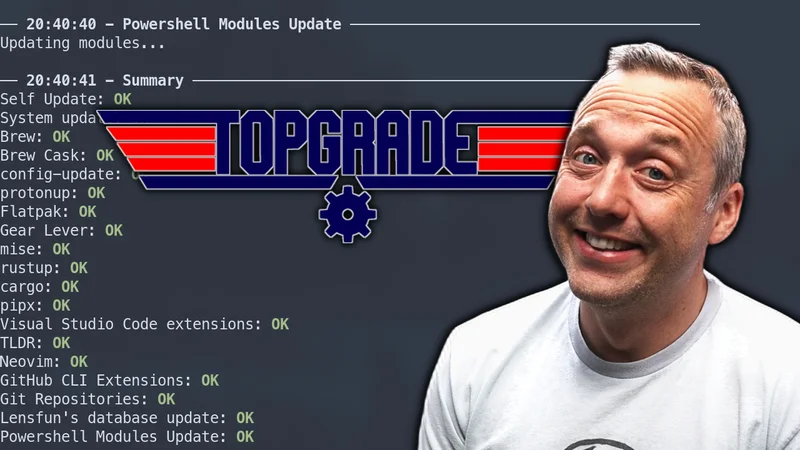
Most Linux users only run their package manager and call it a day. That updates your system packages, but it often leaves the rest of your machine in a partially updated state. If you use pip, cargo, flatpak, snap, brew, oh-my-zsh, VS Code extensions, or even dotfile repos, those pieces can all drift out of date separately.
Topgrade exists to solve this exact problem. It gives you one command to update almost everything you actually use.
Keeping your machine consistently updated is not just about getting shiny new versions. It is about reducing weird breakage from version mismatch, closing security holes faster, and spending less time doing repetitive maintenance.
What Topgrade Is
Topgrade is a command-line tool that runs update commands across multiple package managers and tools in sequence. Instead of remembering ten different commands, you run one:
topgradeTopgrade handles things like:
- System package managers (
apt,dnf,pacman,zypper,eopkg, etc.) - Language package managers (
pip,cargo,npm,gem, etc.) - Universal package managers (
flatpak,snap) - Tooling ecosystems (
rustup,asdf,sdkman,mise, etc.) - Repository pulls (dotfiles or any local git repos)
- Shell and plugin ecosystems (Oh My Zsh, Fish plugins, Vim/Neovim plugins, etc.)
- VS Code extensions
- Container images (
docker,podman) - Firmware via
fwupd
The exact behavior depends on your distro and what tools you have installed, but the core idea is the same: centralize updates.
The Problem with “Just Do System Updates”
When people say “I update regularly,” they usually mean one command:
- Debian/Ubuntu:
sudo apt update && sudo apt upgrade - Fedora:
sudo dnf upgrade - Arch:
sudo pacman -Syu
That is good, but incomplete for most power users.
You Are Only Updating One Layer
Modern Linux setups have multiple software layers:
- OS packages
- Userland language packages
- Third-party tools installed outside distro repos
- Application stores (
flatpak,snap) - Git-managed configs and scripts
If only one layer is current, your system is still effectively behind.
Human Memory Is the Bottleneck
Nobody wants a giant sticky note of update commands. Even experienced users forget steps when busy.
Topgrade removes this memory tax. You no longer need to think, “Did I update cargo crates this week? Did I pull dotfiles?”
Drift Causes Hard-to-Debug Issues
Many random issues come from version drift between tools:
- A CLI tool expects newer dependencies than your local setup has
- A shell plugin manager is old while the shell itself is new
- User-level packages lag behind system-level updates
Topgrade reduces this drift by making full-stack updates routine.
Installation
Topgrade is available through a wide range of package managers. Pick whichever fits your setup:
# Arch Linux (AUR)
yay -S topgrade-bin
# or build from source:
yay -S topgrade

# Fedora / RHEL / AlmaLinux (Copr)
sudo dnf copr enable lilay/topgrade
sudo dnf install topgrade

# Debian / Ubuntu (via deb-get)
deb-get install topgrade

# macOS or Linux (Homebrew)
brew install topgrade

# NixOS / Nix
nix-env -iA nixpkgs.topgrade

# Alpine Linux
sudo apk add topgrade

# Void Linux
sudo xbps-install -S topgrade

# Python (pip / pipx / uv)
pipx install topgrade

# Via Cargo (always gets latest release)
cargo install topgradeYou can also grab a pre-built self-updating binary directly from the releases page.
First Run: What to Expect
topgradeYou may be prompted for sudo depending on what update steps need elevated privileges. The first run can take a while because it catches up everything at once — that is normal.
Useful Flags
| Flag | Description |
|---|---|
--dry-run |
Preview what would run without making changes |
-y / --yes |
Skip all confirmation prompts |
--only <step> |
Run only specific steps (e.g. --only system flatpak) |
--disable <step> |
Skip specific steps for this run |
--edit-config |
Open your config file in $EDITOR |
--config-reference |
Print all available config options |
--remote-host-limit <host> |
Limit remote execution to specific hosts |
Safety: How to Use It Responsibly
Topgrade is powerful, so use it with a sane workflow.
Start with a Dry Run
Preview what it would do before committing:
topgrade --dry-runThis is especially useful the first time you set it up, or after making major changes to your configuration.
Keep Backups and Snapshots
Before major updates:
- Snapshot with Btrfs/Timeshift/ZFS if available
- Backup important config and data
No update tool replaces backups.
Exclude What You Do Not Want
You can configure Topgrade to skip specific steps you do not trust or do not need. That lets you keep one-command convenience while controlling risk.
Recommended exclusion for cautious users — firmware updates:
I had firmware updates break my system before, so I prefer to review them separately. Disable them in your config:
~/.config/topgrade.toml
[misc]
# Skip firmware updates entirely
disable = ["firmware"]

[firmware]
# If firmware step does run, only show available updates — do not install
upgrade = falseFor a one-off skip without editing your config:
topgrade --disable firmwareRead the Output
Treat updates like maintenance, not background noise. If one step fails, investigate before your next cycle. Topgrade reports each step’s result clearly — use it.
Configuration
Topgrade’s config lives at:
~/.config/topgrade.toml(primary location)~/.config/topgrade/topgrade.toml(alternative; both are checked)
On the first run with no config present, Topgrade creates one for you automatically. Open and edit it with:
topgrade --edit-configPrint every available option with:
topgrade --config-referenceKey Configuration Options
Here is a practical subset of the most useful settings:
[misc]
# Cache sudo credentials upfront to avoid mid-run password prompts
pre_sudo = true

# Steps to always skip
disable = ["firmware", "snap"]

# Steps to run before all others
first = ["chezmoi"]

# Steps to run after all others
last = ["flatpak"]

# Ignore failures for noisy or unreliable steps
ignore_failures = ["pip3"]

# Clean up old temp files after a run
cleanup = true

# Send a desktop notification when done
notify_end = "on_failure"

[git]
# Pull these repos every time you run topgrade
repos = [
    "~/dotfiles",
    "~/src/*/",
]
# Pull in parallel (default: 5)
max_concurrency = 5
# Rebase and autostash instead of plain merge
arguments = "--rebase --autostash"

[linux]
# Arch: choose your AUR helper (autodetect, paru, yay, pikaur, etc.)
arch_package_manager = "paru"
# Extra args passed to yay/paru
yay_arguments = "--nodevel"

[flatpak]
# Update system-wide Flatpak installs (requires sudo)
use_sudo = true

[python]
# Update pip packages (disabled by default)
enable_pip_review = true

[firmware]
# Only show available firmware updates, do not install
upgrade = false
Full syntax and every available option: https://github.com/topgrade-rs/topgrade/blob/main/config.example.toml
Custom Commands
You can hook your own scripts into the update pipeline using pre_commands, post_commands, or commands:
# Runs before anything else
[pre_commands]
"Backup dotfiles" = "chezmoi git -- push"

# Runs after everything else
[post_commands]
"Reload shell" = "exec $SHELL"

# Custom named steps that appear in the Topgrade run
[commands]
"Update Python env" = "~/dev/.venv/bin/pip install -U pip"
Remote Execution
If you maintain multiple machines, Topgrade can SSH into them and run updates before acting locally:
[misc]
remote_topgrades = ["homeserver", "nas", "pi"]
ssh_arguments = "-o ConnectTimeout=2"
Limit to a single host ad hoc:
topgrade --remote-host-limit homeserverRecommended Update Workflow
For desktops and workstations:
- Run
topgrade --dry-runif you have made major config changes - Run
topgrade - Reboot when kernel, drivers, or core libraries update
- Quickly test key workflows: browser, editor, shell, audio, GPU apps
For servers and critical machines:
- Snapshot or backup first
- Run Topgrade with a limited scope:
topgrade --only system - Validate services and logs after the update
Topgrade is a force multiplier, but your operational discipline still matters.
When You Might Not Want Topgrade
Topgrade is not mandatory for every scenario:
- Minimal systems that only use a single package manager
- Locked-down enterprise environments with strict patch management pipelines
- Users who want explicit manual control over every update decision
If your stack is simple, manual updates are fine. But for most modern Linux users running layered tooling across multiple ecosystems, Topgrade saves real time and reduces silent drift.
Topgrade vs Manual Updates
Manual updates are fine when your environment is tiny.
Topgrade wins when your environment is real-world:
- Multiple package ecosystems
- Frequent toolchain changes
- Several machines to maintain
The benefit is not just speed. It is reliability through repeatability.
Final Thoughts
If you are serious about Linux reliability, “just update the system packages” is no longer enough.
Topgrade gives you a practical middle ground between fully manual maintenance and fragile home-rolled shell scripts:
- One command
- Broad coverage across every ecosystem you actually use
- Configurable behavior and custom hooks
- Better long-term system hygiene
Use it weekly, keep backups, and stop letting half your toolchain lag behind.

Comments
Comments load when this section comes into view.