The Ultimate Windows Utility
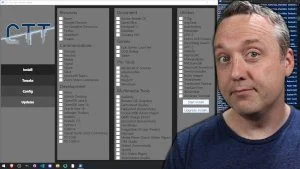
Refined over years, this utility goes beyond debloating Windows:
- Install and update hundreds of apps via WinGet with a single click
- Apply safe, practical tweaks for performance and privacy
- Use proven Windows Update presets used in business environments
- Build a custom debloated Windows 11 ISO with Win11 Creator
- Automate your setup across multiple PCs
One Command - Download and Usage
Run in an elevated PowerShell (Run as Administrator):
irm christitus.com/win | iex
Want the Offline EXE? Get It at cttstore.com
The online command always pulls the latest release straight from GitHub — but if you need more flexibility, the offline EXE from cttstore.com is the better option:
- No internet required — run it on air-gapped machines, work environments, or anywhere without reliable connectivity
- Works online too — fully functional on internet-connected machines just like the PowerShell command
- No PowerShell execution policy headaches — just double-click and run as Administrator
- Portable — copy it to a USB drive and carry your Windows setup toolkit everywhere
- Supports the project — purchasing the EXE directly funds continued development and new features
If you find yourself setting up Windows machines regularly, the EXE pays for itself in convenience alone.
Full documentation is available at winutil.christitus.com.
Utility Tabs
- Install
- Tweaks
- Config (Features & Legacy Panels)
- Updates
- Win11 Creator
Install
Uses WinGet to install, upgrade, or uninstall hundreds of popular applications without hunting for download links or dealing with installer bloat.
Key features:
- Install/Upgrade Selected — installs programs not yet on your system; upgrades those that are
- Upgrade All — updates every installed app in one click
- Uninstall — removes selected apps cleanly
- Get Installed — queries your system and shows what’s already installed
- Clear Selection — resets your checkboxes
- Search — press
Ctrl+Fto filter the app list as you type
Tweaks
The heart of the utility. All tweaks are reversible — a System Restore Point is created automatically before anything is applied.
Essential Tweaks
Safe optimizations recommended for most users. These improve performance, reduce telemetry, and trim unnecessary background activity without risking stability. Start here before touching anything else.
Advanced Tweaks (CAUTION)
For power users who understand the implications. These make deeper OS-level changes and carry a higher risk of side effects. Do not apply them blindly.
O&O ShutUp10++
Launch O&O ShutUp10++ directly from Winutil — a free privacy tool that lets you fine-tune telemetry, update behavior, and app permission settings with a detailed GUI.
DNS
Switch your DNS provider from within Winutil. Available options include:
- Default / DHCP
- Google, Cloudflare, Cloudflare (malware blocking), Cloudflare (malware + adult content)
- OpenDNS, Quad9
- AdGuard (ads + trackers), AdGuard (ads + trackers + malware + adult content)
Both IPv4 and IPv6 are configured automatically.
Customize Preferences
Toggle visual and functional Windows settings to match your preferences.
Performance Plans
Add and activate the Ultimate Performance power plan to minimize latency and maximize efficiency, or revert to the Balanced profile when you don’t need it.
Reverting Tweaks
- Undo Selected Tweaks — reverts only what you chose
- System Restore — roll back to the restore point Winutil created before tweaks ran
Config (Features & Fixes)
Windows Features
Enable optional Windows components with a checkbox and a single click:
- All .NET Frameworks (2, 3, 4)
- Hyper-V Virtualization
- Legacy Media (Windows Media Player, DirectPlay)
- NFS — Network File System
- Windows Subsystem for Linux (WSL)
- Windows Sandbox
- Enable Legacy F8 Boot Recovery
- Enable Daily Registry Backup (12:30 AM)
Fixes
One-click repairs for common system problems:
| Fix | What It Does |
|---|---|
| Set Up Autologin | Configures automatic login for the current user |
| Reset Windows Update | Re-registers update DLLs and restarts update services |
| Reset Network | Runs netsh int ip reset and netsh winsock reset to restore the network stack |
| System Corruption Scan | Runs sfc /scannow and DISM /RestoreHealth |
| WinGet Reinstall | Restores WinGet if installs or uninstalls start failing |
Legacy Windows Panels
Open classic Windows control panels that are faster and more feature-rich than the modern Settings app:
- Control Panel
- Network Connections
- Power Panel
- Region
- Sound Settings
- System Properties
- User Accounts
Remote Access
Enable an OpenSSH server on your Windows machine for remote access without third-party software.
Updates
Three update modes to match your risk tolerance:
| Mode | What It Does |
|---|---|
| Default | Restores standard Windows Update behavior (out-of-box settings) |
| Security (Recommended) | Delays feature updates by 365 days; delays security updates by 4 days to catch bad patches before they hit your machine |
| Disable ALL Updates | Turns off all updates entirely — only for isolated or special-purpose systems. Leaves the system without security patches. Use the Default button to restore. |
Win11 Creator
Win11 Creator takes an official Windows 11 ISO and produces a customized, debloated version — removing AI features, telemetry, and pre-installed apps while maintaining full program compatibility. Export the result as a new ISO or write it directly to a USB drive.
You need an official Windows 11 ISO from Microsoft’s website before starting. Requires ~10–15 GB of temporary disk space.
What it removes and changes:
App & Component Removal:
- 40+ bloat apps removed — Clipchamp, Teams, Copilot, Dev Home, new Outlook, Bing apps, Solitaire, and more
- OneDrive setup deleted from the image
- Unused Windows editions stripped (saves 1–2 GB per removed edition)
- Component store cleaned via DISM (reclaims 300–800 MB)
System Customization:
- Hardware requirement checks bypassed — installs on machines without TPM 2.0, Secure Boot, or supported CPUs
- Local account setup enabled — skips the Microsoft account screen during OOBE
- BitLocker and device encryption disabled
- Chat icon removed from taskbar
- Dark mode enabled by default
- Empty taskbar and Start Menu — no pinned apps
Privacy & Telemetry:
- Advertising ID, tailored experiences, input personalization, and speech online privacy disabled
- Cloud content features, app suggestions, and Microsoft Store recommendations disabled
- Telemetry scheduled tasks removed (CEIP, Appraiser, WaaSMedic, and others)
- Copilot and search box suggestions disabled
- DevHome, new Outlook, and Teams auto-installation blocked
- Windows Update disabled during OOBE (re-enabled automatically on first login)
Optional: Driver Injection — injects all drivers from your current system into the install image, useful for offline installations on machines with missing drivers.
Steps:
- Select ISO — browse to your official Windows 11 ISO (4 GB+)
- Mount & Verify — Winutil mounts and validates the image, then lets you pick the edition (Pro selected by default)
- Run Modification — starts the customization process (10–30 minutes depending on disk speed)
- Export — save as a new ISO file or write directly to a USB drive
- Clean Up (optional) — delete the temporary working directory (~10–15 GB)
Typical output ISO size: 2.5–3.5 GB (down from 5–6 GB original).
Automation
Winutil configurations can be exported and reused to apply the same setup across multiple machines — ideal for labs, workstations, or personal reinstalls.
Export a config:
- Open Winutil
- Click the gear icon (top-right corner)
- Choose Export and save the JSON file
Apply the config on another machine:
& ([ScriptBlock]::Create((irm "https://christitus.com/win"))) -Config "C:\Path\To\Config.json" -Run
Run this in an elevated PowerShell session.